Collaborating with Your Team in Figma
Real-time teamwork, shared feedback, and seamless design handoff with developers
Why Team Collaboration Matters in Design
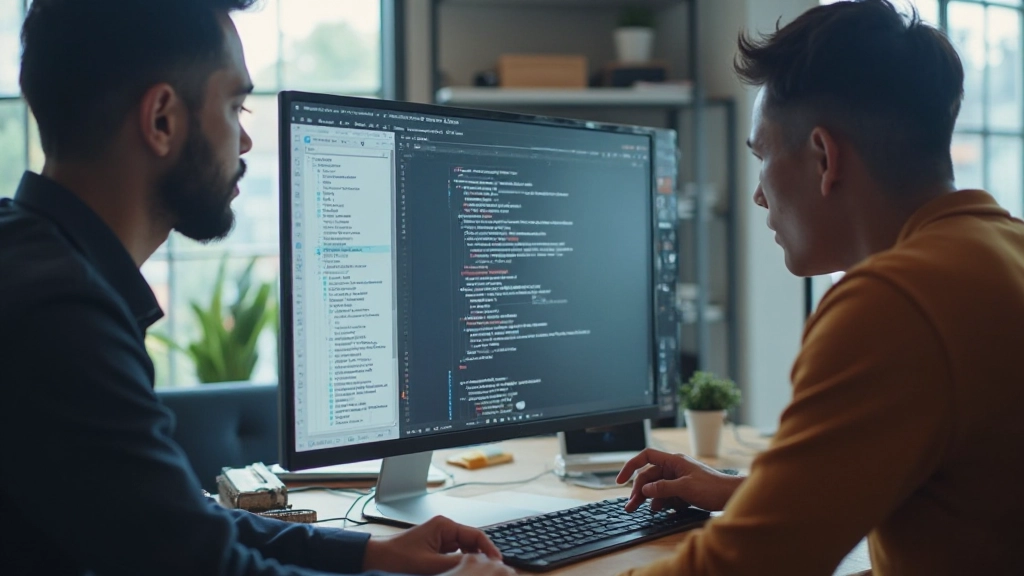
Design doesn’t happen in a vacuum. You’re working with other designers, product managers, developers, and stakeholders who all need to be on the same page. That’s where Figma’s collaboration features become absolute game-changers.
Unlike traditional design tools where you’d email files back and forth or struggle with version control, Figma lets everyone work on the same file simultaneously. You’ll see cursor movements in real-time, watch changes happen as they’re made, and leave feedback directly on the designs. No more “Can you send me the latest version?”
We’re going to walk through everything you need to know about collaborating effectively in Figma. Whether you’re sharing files with your team, gathering feedback, or handing off designs to developers, you’ve got the tools built right in.

Leaving and Responding to Feedback
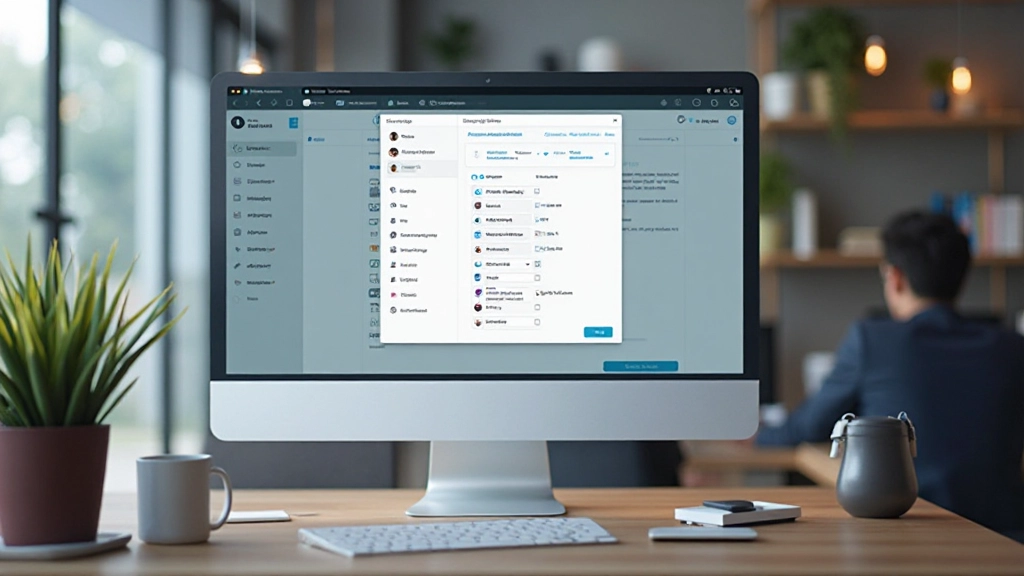
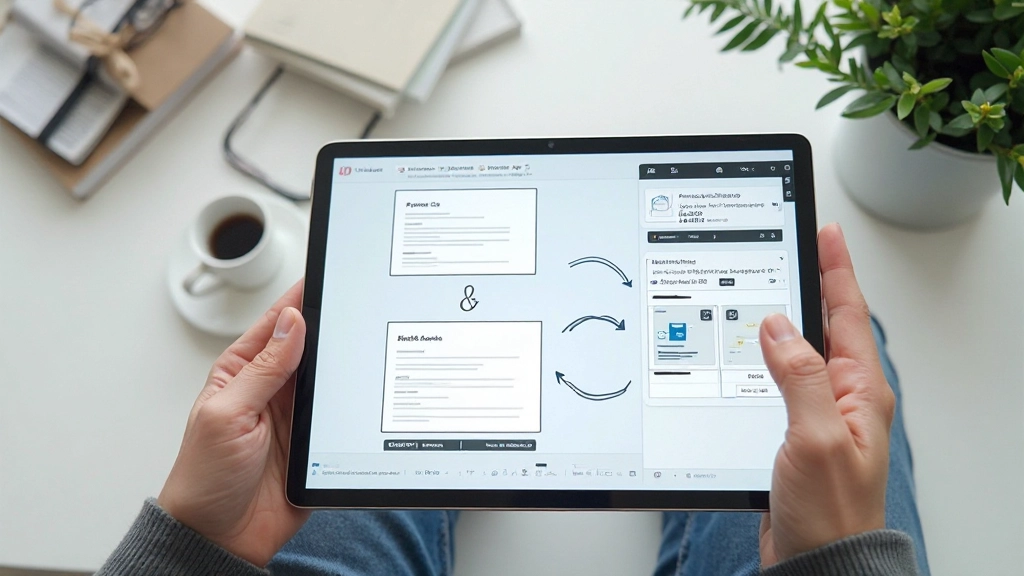
Comments are where real collaboration happens. You can drop a comment anywhere on the canvas—click on a design element, type your feedback, and it’s right there for everyone to see. Your team members get notified immediately, and the conversation stays attached to that specific element.
What we love about Figma’s comment system: it’s contextual. Instead of vague notes like “Button looks weird,” you’re pointing directly at the button you’re talking about. There’s no confusion about which element needs attention. You can even mention specific people using the @ symbol—@sarah or @dev-team—and they’ll get notified.
Common feedback workflow: Designer posts initial designs Stakeholders leave comments with suggestions Designer responds with updated versions Team approves the changes Ready for handoff.
You can also mark comments as resolved once you’ve addressed the feedback. This keeps things organized and makes it easy to see what’s been dealt with and what still needs attention. On larger projects with lots of stakeholders, this becomes invaluable for tracking progress.
Design Handoff to Developers
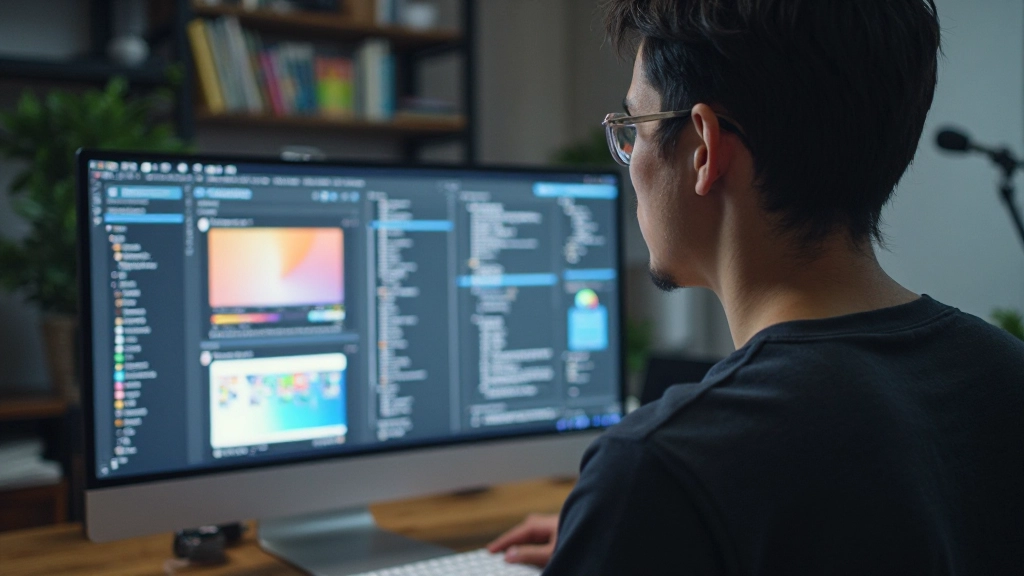
The moment designers and developers have been waiting for: the handoff. This used to involve sending lengthy specs documents, screenshots, and back-and-forth emails. With Figma, developers can grab everything they need directly from the design file.
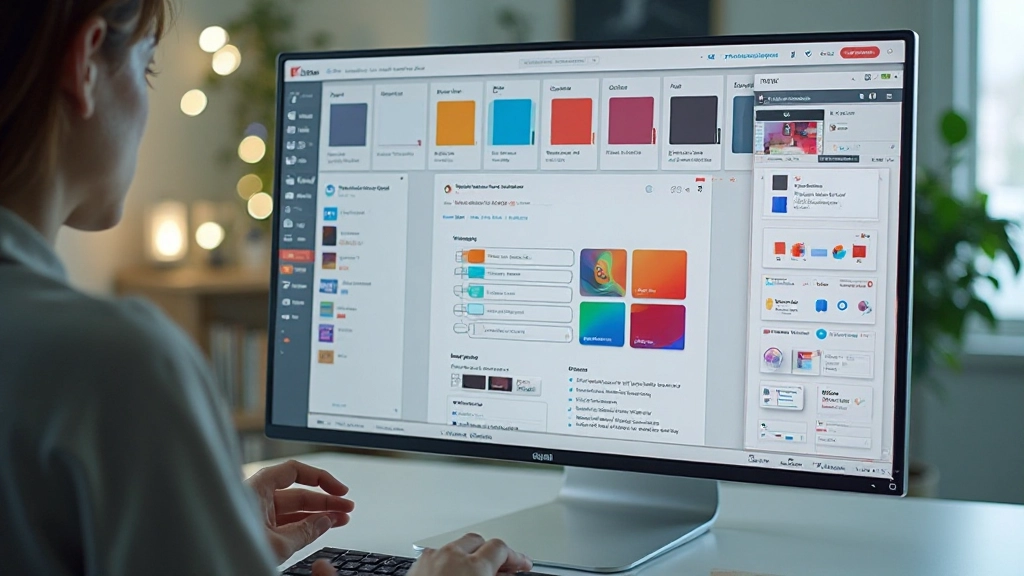
The Inspect tab is your best friend here. When a developer opens your Figma file, they can click any element and instantly see measurements, spacing, font sizes, colors in different formats (HEX, RGB, CSS), and even export assets. They don’t need to ask “How big is this button?” or “What’s the exact color of that background?” It’s all right there.
Make their life easier by organizing your design file properly. Use clear layer names, group related elements, and create components for things that repeat. A well-structured file saves developers hours of work trying to figure out what’s what. You’ll find they actually want to look at your designs instead of dreading the handoff.
Pro move: Set developers as Viewer-only so they can’t accidentally move things, but give them full access to the Inspect tab. They get everything they need without the risk of disrupting your design work.
Advanced Collaboration Features
Version History
Keep track of every change made to your file. You can jump back to previous versions, see who made changes and when, and restore older versions if needed. This is your safety net.
Shared Libraries
Create a central design system file with components and styles that your whole team can use. Changes to the library automatically update across all files that use it. Consistency guaranteed.
Live Cursors
See exactly where your teammates are working in real-time. You’ll see their cursor position, name, and even what they’re typing. It’s like working in the same room.
Export Settings
Prepare assets for export with specific settings. Your team can grab ready-to-use images, icons, and other assets without having to resize or reformat them manually.
Smart Notifications
Get notified when someone comments on your work, mentions you, or makes changes to files you’re watching. You’ll never miss important updates from your team.
Team Workspace
Organize your team’s files and projects in a shared workspace. Everyone can access what they need, collaborate on active projects, and archive completed work.
Best Practices for Smooth Collaboration
Collaboration tools are only as good as the practices behind them. Here’s what actually works when teams use Figma together:
Name Everything Clearly
Don’t leave layers named “Group 1” or “Copy of Copy.” Use descriptive names like “Button—Primary—Large” or “Card—Product.” Your team will thank you, and you’ll spend less time asking “Which layer is that?”
Use Components for Consistency
Create components for anything that repeats—buttons, cards, headers, navigation. When a component changes, it updates everywhere it’s used. This prevents the chaos of multiple versions of the same element.
Set Clear Access Levels
Not everyone needs edit access. Clients and stakeholders can be Viewers. Contractors might be Editors for their specific section only. Clear permissions prevent accidental deletions and keep your design work safe.
Document Your Design System
Create a separate file or section that explains your design system, color palette, typography, spacing rules, and component usage. This becomes your team’s reference guide.

Making Collaboration Actually Work
Figma’s collaboration features transform how design teams work. You’re not stuck with version control nightmares, endless email chains, or confusion about what’s the latest version. Everyone’s working on the same file, in real-time, with full visibility into what’s happening.
Start small. Share a file with one person and try leaving comments. See how the Inspect tab works with your developers. Build up your team’s understanding of shared libraries and components. These aren’t complicated features—they just require a shift in how you think about design work.
The teams that use Figma’s collaboration features effectively aren’t the ones with the fanciest designs. They’re the ones shipping work faster, making better decisions because they’re gathering feedback early and often, and spending less time on administrative overhead. That’s the real win.
Ready to Collaborate Better?
Start with one collaborative project and experience the difference real-time teamwork makes. Invite your team, leave some comments, and watch how much smoother the design process becomes.

Educational Disclaimer
This article is provided for educational purposes to help you understand Figma’s collaboration features. While we’ve covered best practices and techniques, every team’s workflow is different. Your specific needs may vary based on team size, project type, and organizational structure. We recommend testing these features with your own team and adjusting your approach based on what works best for your unique situation. Figma is a rapidly evolving tool, so features and interfaces may change—check Figma’s official documentation for the most current information.